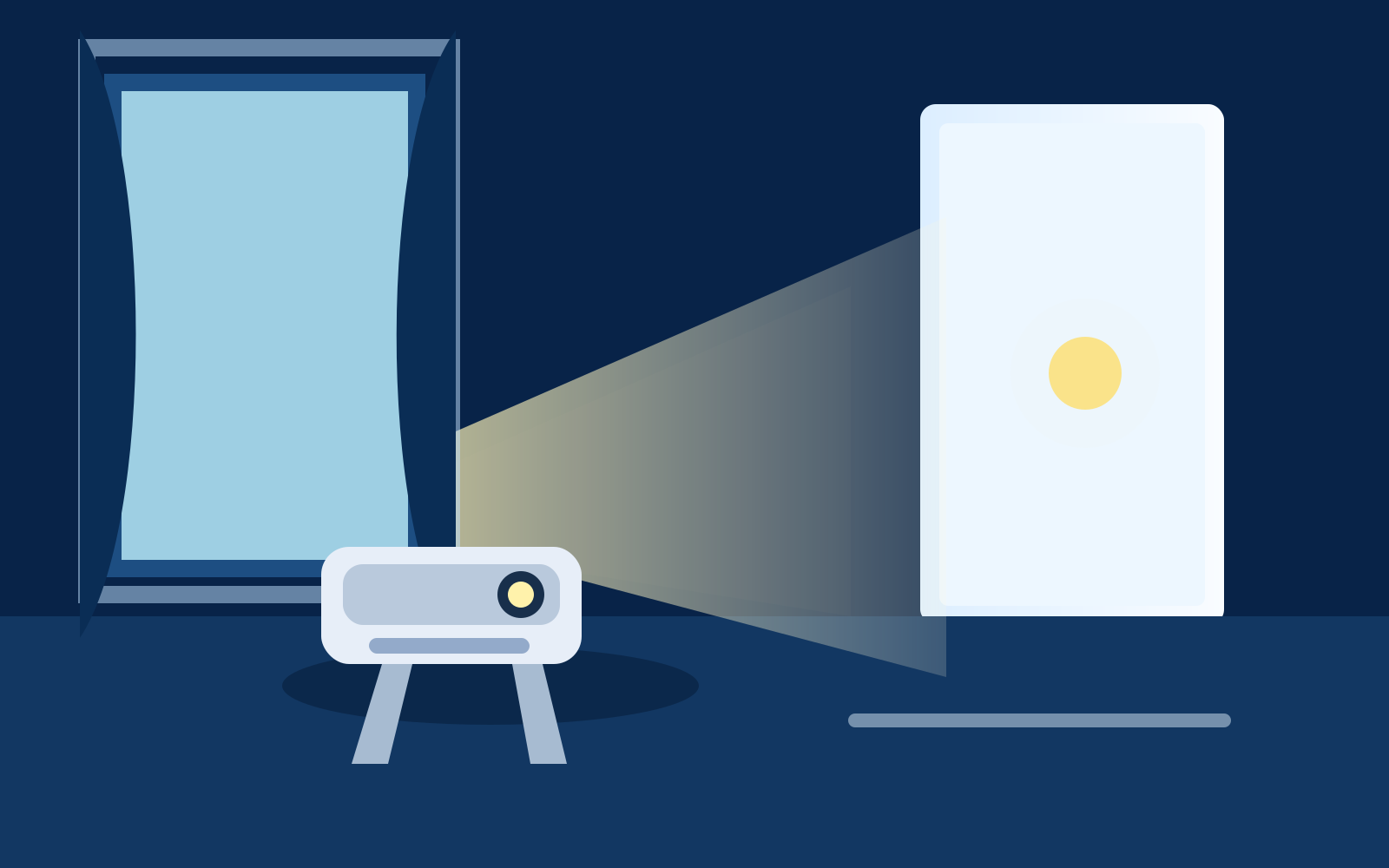
A dim projector image is usually not a sign that the projector is broken. More often, the room is brighter than the projector can comfortably handle, the picture has been stretched too large, or a low-power setting is working against the setup. The good news is that most brightness fixes cost nothing and take a few minutes.
Start with the things that change what reaches your eyes: room light, image size, surface, and physical placement. Then use the projector menu to fine-tune what is left. This order matters. A brighter picture mode cannot overcome sunlight hitting the wall, and turning every slider to the maximum can make a watchable image look harsh without making it truly easier to see.
1. Block light from reaching the wall or screen
Ambient light is the main reason projected pictures look washed out. Light from windows, overhead fixtures, lamps, and even a bright doorway lands on the same wall or screen as the projector image. That competing light weakens dark scenes and makes colors look pale. The clearest first move is to darken the projection side of the room: close blinds or curtains, turn off lamps that face the wall, and move floor lamps behind the seats when you can.
You do not need a pitch-black room for casual viewing, but you do need to keep direct light off the image. ProjectorCentral’s brightness guide explains that the brightness a projector needs depends heavily on both image size and room light. That is why a smaller image in a shaded room can look more satisfying than a much larger image in a bright room. Treat the room as part of the picture, not as a background detail.

For daytime viewing, aim for shade rather than trying to overpower a sunlit window. Pull the blinds before you turn on the projector, choose the wall furthest from the window, and avoid positioning the setup where sunlight crosses the surface. If the room cannot be dimmed at all, a TV is usually the more practical everyday display. A compact projector is at its best for evening viewing, a bedroom with curtains, or a room where you can manage the light.
2. Make the image smaller before changing settings
Projectors spread a fixed amount of light over the image area. When you make that image much larger, the available light spreads out and the picture can look dimmer. Moving the projector a little closer, or choosing a smaller picture in the menu when the model supports it, is one of the fastest ways to get a brighter-looking image.
Start with an image size that feels comfortable from the seats rather than trying to cover every inch of blank wall. A moderate picture with readable subtitles, clear faces, and solid contrast is more enjoyable than a huge image that disappears whenever a lamp is switched on. This is particularly useful with a portable projector because it lets you adjust the setup to the room instead of demanding that every room behave like a theater.
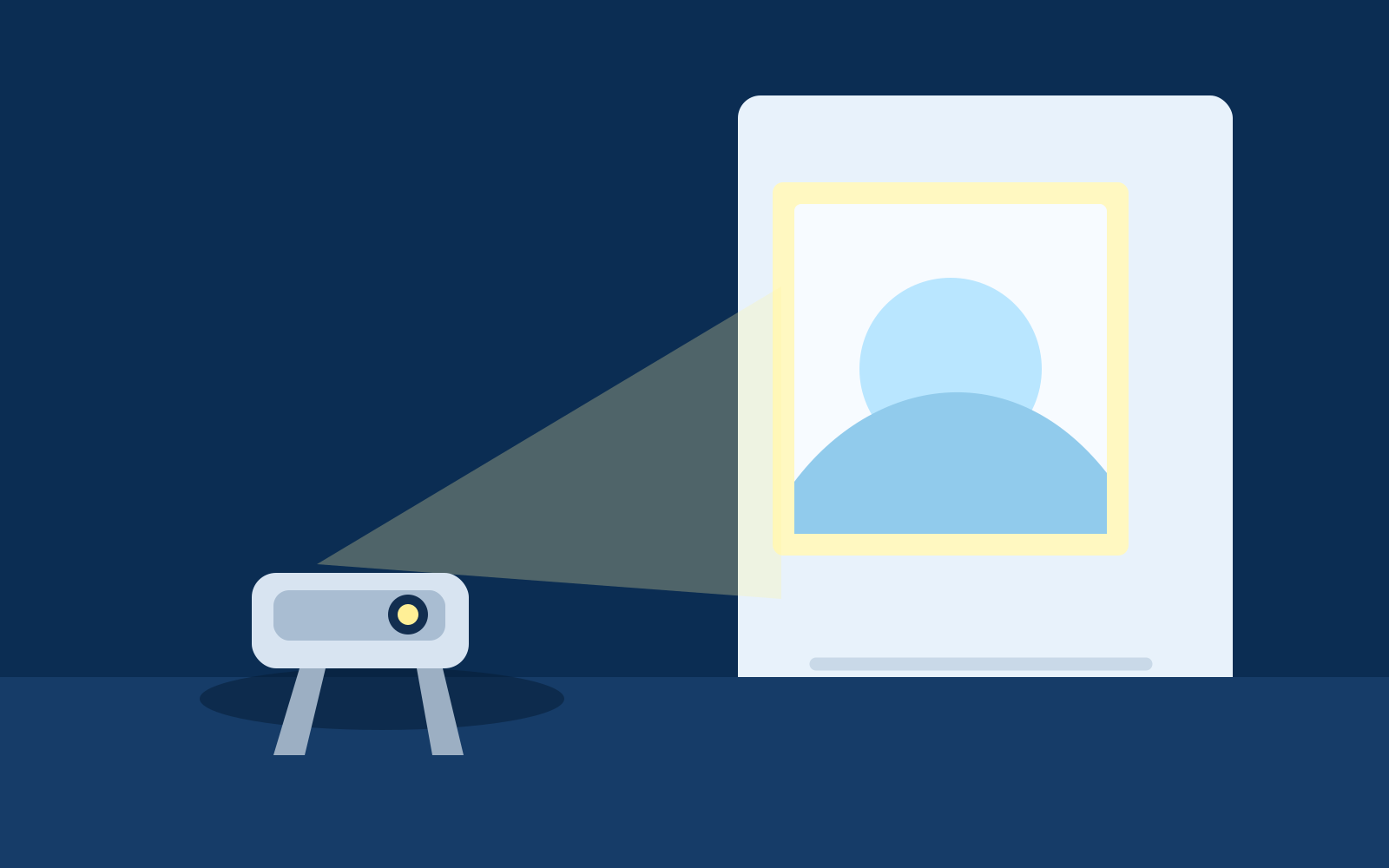
After changing the size, refocus the projector. Check menu text near the center and edges, then make sure the projector is level and facing the wall as squarely as possible. The portable projector setup guide walks through the right order: placement first, then a small amount of keystone correction, then focus. A sharp, smaller picture often feels brighter simply because detail is easier to see.
3. Use the projector’s brighter picture mode
Most projectors include picture presets such as Movie, Cinema, Standard, Vivid, Dynamic, Bright, or Presentation. Names vary, but the brighter modes usually put more emphasis on light output. Switch modes one at a time and compare them with the same scene or menu screen. In a room with some light, a Bright or Standard mode can help the picture stand out. In a dark room, Movie or Cinema may look more balanced even if it is not the brightest option.
Do not assume the brightest mode is automatically the best mode. Some presets make whites brighter by pushing colors cooler or making skin tones look unnatural. Use it when the room calls for it, then return to a more balanced preset when the lights are down. BenQ’s brightness guide makes the same practical point: ambient light and desired image size work together, so the room should determine the setting.
4. Turn off Eco, Quiet, or low-power light modes when needed
Many projectors offer an Eco, Quiet, Extended, or low-power mode. These modes can reduce fan noise and extend the life of a lamp or light source, which can be useful in a dark bedroom. The tradeoff is lower light output. If the image looks dim, open the projector’s picture, power, or light-source menu and see whether one of these modes is active.
Use the normal or high-output setting when the room has light leaking in, when you are watching with a group, or when the image needs to be larger. Epson’s support guidance for light-source modes describes this tradeoff directly: reduced-power options lower brightness, while the normal setting is intended for brighter spaces. The exact menu name depends on the model, so use the owner’s manual for the final setting path.
There is no need to run the highest-output mode all the time. Once the room is dark enough and the picture looks good, you can decide whether the quieter setting is worth the softer image. The useful goal is not maximum numbers. It is a clear picture that suits the room and the way you actually watch.
5. Improve the wall or screen before buying a new projector
A smooth, light, matte wall gives a projector an easier surface to work with than a dark-colored, glossy, or heavily textured wall. If the current wall has artwork, roller texture, strong paint color, or a lamp shining beside it, the picture can look less bright and less even than the projector is capable of producing. Try the smoothest, lightest wall in the room before assuming you need more hardware.
A dedicated screen can be worthwhile when you watch often or the wall itself is the problem. A screen gives you a more predictable, flat surface and can make the image feel cleaner. It is not a magic answer for direct sunlight. For that decision, use the projector screen versus wall guide to compare the tradeoffs for your room, budget, and viewing routine.
6. Check the lens, vents, and physical setup
Dust, fingerprints, and an obstructed vent can all make a projector work harder than it should. Turn the projector off, let it cool, and use the manufacturer’s recommended cleaning method for the lens. Do not scrub it with a shirt or household cleaner. A clean microfiber cloth designed for lenses is usually the safer option, but the manual for your model should have the final word.
Give the projector breathing room, too. Do not tuck it into a closed cubby, cover it with fabric, or block its vents with a book stack. Heat can lead a projector to reduce output or shut down, and it is a lousy way to end movie night. Put it on a stable surface, keep cables from tugging on it, and leave enough space around the air intake and exhaust.
Know which “fixes” do not really add brightness
Turning the brightness slider all the way up is not the same as giving a projector more light output. On many models, that control changes how dark parts of the picture are displayed. Pushing it too far can turn blacks gray and make the image look flatter. Contrast works differently, but it can also hide detail if it is overdone. Make one small adjustment at a time, then compare a familiar scene with faces, subtitles, and darker areas.
Heavy keystone correction is another common trap. It is helpful for tidying a slightly tilted image, but it cannot make the projector brighter. In some cases it reduces the usable picture area or makes text look softer. Move the projector so the lens faces the center of the wall, set the right height, and use only a small correction afterward. The wall-versus-screen guide has a quick way to check placement and surface before treating the projector itself as the problem.
Be skeptical of vague brightness claims when comparing a replacement projector. A meaningful ANSI or ISO lumen rating is easier to compare than an unexplained marketing number. ProjectorCentral’s guide to projector lumens explains why measurement method matters and why picture mode can change real output. The smart comparison is not just which listing has the biggest number. It is whether the projector has a credible rating for the room light and image size you actually plan to use.
Finally, do not aim a lamp at the seating area and assume it will leave the screen alone. Light bouncing from pale walls, a ceiling, or a coffee table can still lower contrast. If someone needs a reading light, keep it low, warm, and behind the seats, pointed away from the image. Small room changes like that often make more difference than another round through the settings menu.
7. Set fair expectations for a compact projector
Compact projectors are made for flexible, casual big-screen viewing, not for defeating a bright living room at noon. They tend to look best after dark, in a shaded bedroom, or with a modest image size. That is not a flaw. It is the tradeoff that makes them portable and easy to bring out for a film, game, or occasional gathering.
The HY300 portable smart projector is listed with HDMI input, built-in Android, auto keystone correction, and a 40 to 130 inch projection range. For the best result, start closer to the lower end of that range in a darkened room, focus carefully, and test the source you plan to use. If you are using a laptop, the laptop-to-projector connection guide can help you rule out a source or cable problem before changing picture settings.
Use this quick brightness checklist
- Close blinds and turn off lights that shine on the wall or screen.
- Move the projector closer or reduce the image size.
- Choose a brighter picture preset, then compare it with a balanced preset.
- Check for Eco, Quiet, Extended, or low-power light modes.
- Use a smooth, light, matte surface and keep the projector level.
- Clean the lens safely and make sure vents are not blocked.
- Test with the actual source and seating position you will use.
Work through that list in order. It handles the common causes of a dim image without sending you straight to an unnecessary upgrade. Once the picture is bright enough to enjoy, stop adjusting and watch something. A reliable, comfortable setup beats an endless hunt for a showroom-perfect image, and it makes the next movie night much easier to start, enjoy, and repeat.
Frequently asked questions
Why is my projector dim even with the brightness setting turned up?
Room light, image size, picture mode, and the projection surface can all make a projector look dim. Start by darkening the room and reducing the image size, then check that the projector is not in an Eco, Quiet, or low-power mode.
Will a smaller projector image look brighter?
Usually, yes. The projector is spreading the same light over less wall or screen area, so a modest image can look noticeably brighter and clearer than a very large one in the same room.
Can a projector work in daylight?
A projector can remain visible in a shaded room, but direct sun or a bright window will wash out contrast quickly. Closing blinds, redirecting lamps, and using a smaller image usually help more than pushing every picture setting to its maximum.
Does a projector screen make the picture brighter?
A suitable screen can give the projector a more even, reflective surface than a colored or textured wall. It cannot cancel direct sunlight, so control room light first and choose a screen only when it solves a real surface or viewing problem.
Related posts

Portable Projector Setup: Get a Clear Picture Anywhere
A practical guide to placing, focusing, connecting, and tuning a portable projector for movie night, gaming, or a quick big-screen setup.

How to Connect Your Phone to a Projector
A practical guide to wired and wireless phone-to-projector connections, plus the compatibility checks that prevent a movie-night scramble.
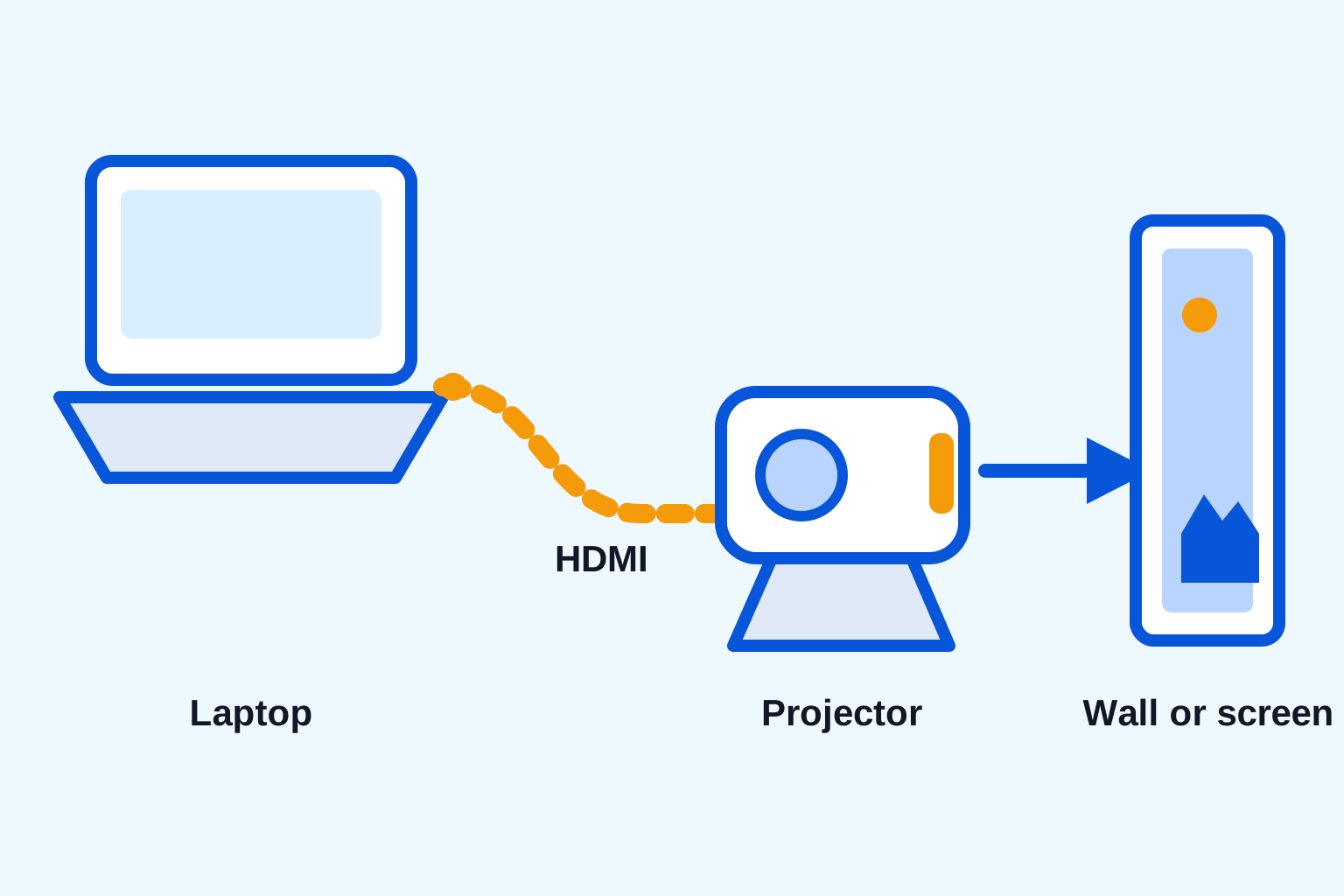
How to Connect a Laptop to a Projector
A simple laptop-to-projector guide for HDMI, display settings, sound, and the quick checks that prevent a blank screen.

How to Connect a Bluetooth Speaker to a Projector
A simple guide to pairing a Bluetooth speaker with a projector, choosing the right audio output, and solving common sound problems.