
A compact projector can make a room feel much bigger, but its built-in speaker is often the weak spot. A Bluetooth speaker can give movies more presence, make dialogue easier to hear, and let you place the sound closer to where people are sitting. The useful part is that you do not need a complicated home-theater setup. You just need to confirm that the projector can send Bluetooth audio and then pair the devices in the right order.
This guide covers the practical checks, pairing steps, and quick fixes that make a projector-and-speaker setup work without turning movie night into a settings hunt. The key is to treat the picture and sound as two separate jobs: get the video stable first, then send the audio where you want it.
Check whether the projector sends Bluetooth audio
Before buying or pairing anything, open the projector's settings and look for a Bluetooth option under Sound, Audio, Device, or Connections. What matters is Bluetooth output, sometimes called a speaker, audio device, or external audio option. A projector can have Bluetooth and still use it only to receive sound from a phone, which will not help you play a movie through a separate speaker.
Also check that the speaker is a normal Bluetooth audio speaker, not a device that only connects through a particular app. Most portable speakers are straightforward, but pairing behavior varies. If a speaker is already connected to a phone, tablet, or laptop nearby, disconnect it there first. A speaker that is quietly reconnecting to another device is one of the most common reasons it does not appear in the projector's list.
Put the speaker in pairing mode first
Start with the speaker close to the projector. Turn it on, then use its Bluetooth or power button to put it into pairing mode. Many speakers use a flashing light or a tone to show that they are ready, but the exact signal depends on the model. If you are not sure, the speaker's instructions are the best reference. Apple also explains the basic pairing flow for Bluetooth accessories in its Bluetooth accessory guide, which follows the same familiar pattern of making the accessory discoverable first.
Then open the projector's Bluetooth device list and scan for nearby devices. Choose the speaker by its displayed name. Wait for the projector to confirm that it has connected before starting playback. If the name is vague or you have several Bluetooth devices in the room, temporarily switch off the ones you are not using. That keeps the device list short and makes the first connection much easier to verify.

Select the Bluetooth speaker as the audio output
A successful pairing does not always switch the sound automatically. Start a short video, then go back to the projector's sound settings and choose the Bluetooth speaker as the active audio output. Turn the projector volume down only after you hear the speaker working. That makes it clear which device is producing sound and prevents a half-working setup from being mistaken for a pairing failure.
Use a familiar clip with dialogue for the first test. Music can make a slight timing issue hard to notice, while someone speaking on screen makes it obvious whether the sound is keeping up. If the speaker is much quieter than expected, raise both the projector's media volume and the speaker's own volume. Some projectors set the Bluetooth output low the first time they connect.
Connect the picture and sound in the right order
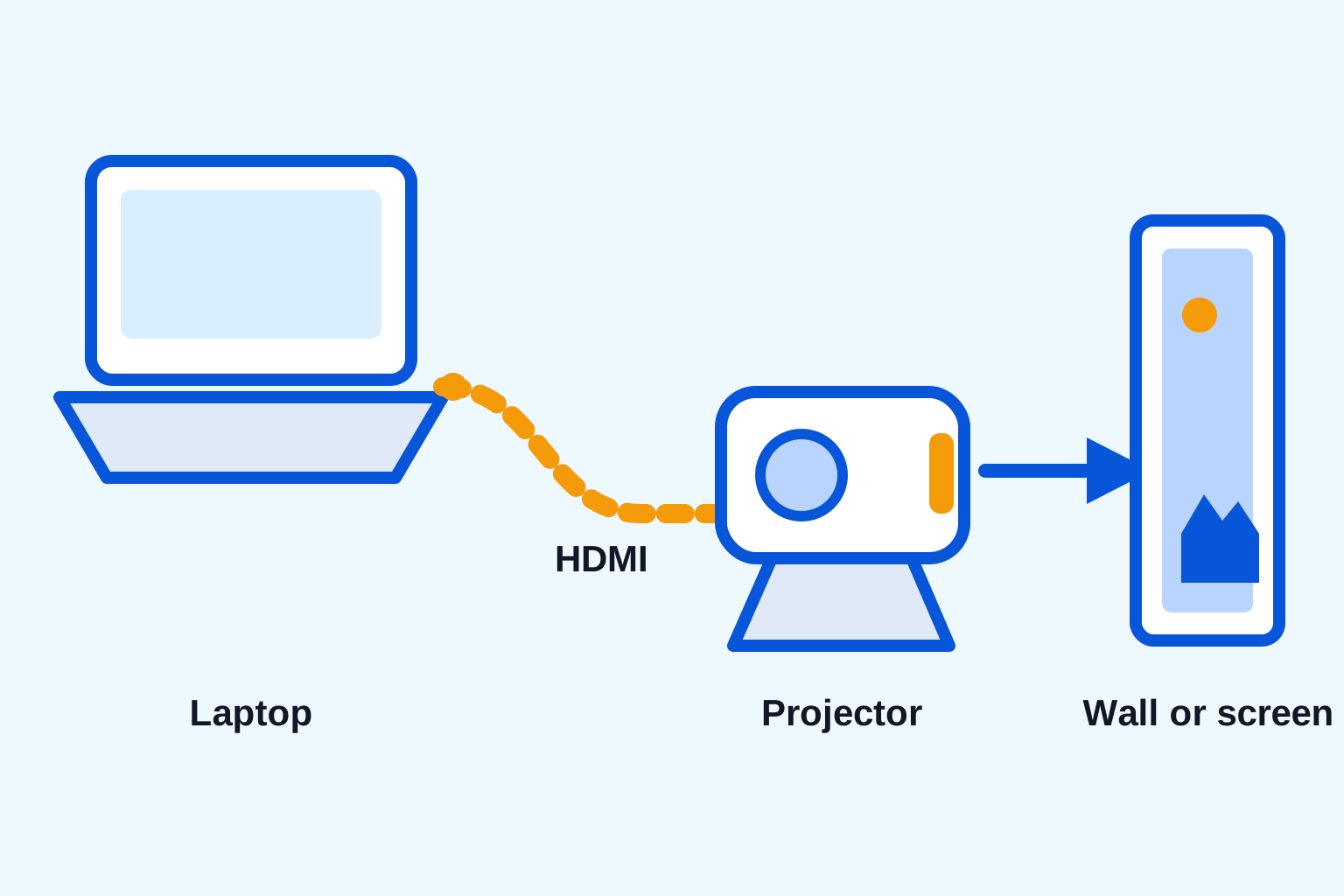
Get the picture working before you troubleshoot the speaker. With a laptop, streaming stick, or game console, HDMI is usually the easiest way to make the video connection stable. The laptop-to-projector guide walks through input selection and display settings. If you are using a phone, the phone connection guide covers the adapter and casting checks that come first.
Once you have a steady picture, the projector becomes the hub: the source sends video to the projector, then the projector sends sound to the Bluetooth speaker. That two-step setup is why a phone can mirror a picture successfully while the audio still plays from the projector. Do not keep changing phone settings until you have confirmed which device is supposed to own the audio output.

Know when Bluetooth delay is normal
Bluetooth is convenient, but it can introduce a small delay between the picture and sound. You may not notice it with background music, but it can be distracting when watching dialogue or playing a game. If your projector has Audio Delay, Lip Sync, or AV Sync controls, make small adjustments while playing a scene with someone talking. Change one step at a time and give the connection a few seconds to settle.
Delay does not automatically mean something is broken. It is a tradeoff of wireless audio, and different speakers, projectors, and source devices handle it differently. For a casual show in a bedroom or living room, a small delay may be acceptable. For gaming, karaoke, sports, or a movie where lips and dialogue need to line up tightly, choose the connection that gives you the best timing rather than the fewest cables.
Keep a wired backup for the nights that matter
A wired connection can be the better answer when Bluetooth will not pair, the audio is delayed, or you simply want the most predictable result. Check whether the projector and speaker have compatible 3.5 mm audio ports, then use the appropriate cable. Some speakers may accept audio through an auxiliary input, while others are designed only for Bluetooth or USB charging. Look at the ports before ordering a cable.
HDMI can also carry sound from a laptop or streaming device to a projector, but that does not guarantee it can pass sound onward to every speaker. Test the exact combination you plan to use. Keeping one simple cable with the projector means a Bluetooth hiccup does not cancel the viewing altogether. The portable projector setup guide can help you dial in the picture after the sound path is settled.

Fix a speaker that will not appear or reconnect
If the speaker does not appear in the projector's Bluetooth list, turn the speaker off and back on, then place it back in pairing mode. Move it within a few feet of the projector for the first connection. Next, forget or remove the speaker from the projector's saved Bluetooth devices and scan again. This clears out a stale connection that can keep the projector from starting a fresh pairing process.
If the speaker connects but drops out, check its battery level and make sure it is not being claimed by a phone, tablet, or laptop nearby. Restart both devices before trying again. For Android phones, Google's Bluetooth troubleshooting guidance also recommends turning Bluetooth off and back on and checking saved connections when a device does not connect reliably.
When the speaker appears connected but the projector is silent, play a local video or a menu sound. That separates a Bluetooth problem from a streaming-app problem. Then recheck the projector's audio output menu. In many cases, the fix is simply selecting the external speaker after the pairing is complete.
Place the speaker where people are listening
Put the speaker closer to the seating area than the projector when you can. That gives the room a more natural sound source and can make dialogue easier to follow without raising the volume too much. Do not hide the speaker behind a couch cushion, inside a cabinet, or right next to a loud projector fan. Give it an open, stable surface with enough room for the sound to spread.
For a small room, one portable speaker may be enough. In a larger room, two speakers can improve coverage only if the projector and speakers support that arrangement. Do not assume any two speakers will pair together. A single well-placed speaker that stays connected is better than a more ambitious setup that becomes unreliable halfway through a movie.
Build a simple projector-and-speaker kit
The easiest setups are the ones you can repeat. Keep the projector, its power cable, the speaker, its charging cable, and one backup audio cable together. Before guests arrive, run a five-minute test: turn on the projector, connect the source, pair the speaker, select it as the audio output, and play a short clip from the sofa. That small rehearsal catches weak batteries, the wrong input, and audio delay while there is still time to fix them.
For a compact starting point, the HY300 portable smart projector gives you HDMI input for a dependable video path, while the store's portable waterproof Bluetooth speaker gives a flexible audio option for casual viewing. Browse the audio collection when you want to compare other speaker options for the room.
Use this five-minute sound checklist
- Confirm the projector supports Bluetooth audio output.
- Disconnect the speaker from nearby phones or tablets, then put it in pairing mode.
- Pair the speaker in the projector's Bluetooth device list.
- Select the speaker in the projector's Audio Output settings.
- Play a short dialogue clip and check volume, timing, and connection stability from the seating area.
That sequence keeps the troubleshooting focused. Once it works, leave the speaker paired and the backup cable with the projector. The next setup should feel like starting a movie, not starting over.
Frequently asked questions
Can any Bluetooth speaker connect to any projector?
No. The projector needs Bluetooth audio output, and the speaker needs to be ready to pair. Some projectors use Bluetooth only for receiving sound from a phone, so check the projector's Bluetooth menu or product details before assuming it can send sound to a speaker.
Why is there a delay between the picture and Bluetooth speaker sound?
Bluetooth adds processing time, so sound can arrive slightly after the picture. Try the projector's audio delay or lip-sync setting if it has one. For gaming, dialogue-heavy movies, or any setup where the delay is distracting, a wired audio connection is usually the better choice.
Why does my projector still play sound from its built-in speaker?
Pairing is only the first step. Open the projector's sound or audio output menu and select the Bluetooth speaker as the active output. If it is already selected, disconnect and reconnect the speaker after stopping playback, then test with a short video.
Can I use Bluetooth for a projector and phone at the same time?
Often, yes, but they do different jobs. Your phone or laptop sends the picture to the projector through HDMI, screen mirroring, or casting. The projector then sends sound to the Bluetooth speaker. Test the whole chain before a movie night because device support can vary.
Related posts

Portable Projector Setup: Get a Clear Picture Anywhere
A practical guide to placing, focusing, connecting, and tuning a portable projector for movie night, gaming, or a quick big-screen setup.

How to Connect Your Phone to a Projector
A practical guide to wired and wireless phone-to-projector connections, plus the compatibility checks that prevent a movie-night scramble.
How to Connect a Laptop to a Projector
A simple laptop-to-projector guide for HDMI, display settings, sound, and the quick checks that prevent a blank screen.

Outdoor Projector Setup: A Backyard Movie Night Guide
A practical outdoor projector setup guide for choosing a screen spot, managing power, setting up sound, and getting a clearer backyard movie-night picture.